


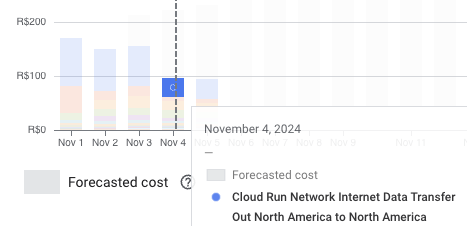
In today's fast-paced development landscape, efficiency and cost optimization are paramount. Google Cloud Run, a serverless compute platform, has recently introduced a game-changing feature: the ability to run multiple containers within a single application. This advancement not only streamlines application architectures but also offers significant reductions in internet data transfer billing. In this post, we'll explore how leveraging multiple containers in Google Cloud Run can optimize your serverless applications, and we'll walk through a practical example of integrating a Node.js container with a Python container.
Understanding Google Cloud Run's Multi-Container Support
Google Cloud Run has traditionally been known for its simplicity in deploying containerized applications. With the introduction of multi-container support, developers can now run sidecar containers alongside the main application container. This means that an application can consist of multiple containers that share the same network namespace, making inter-container communication more efficient and reducing external data transfer costs.
Benefits of Multi-Container Applications in Cloud Run
- Cost Reduction: By keeping inter-service communication within the same environment, you can minimize internet data transfer fees.
- Simplified Architecture: Run auxiliary services like logging agents, proxies, or language-specific services within the same application.
- Enhanced Security: Reduce exposure by limiting external network calls.
- Improved Performance: Lower latency in inter-process communication.
Reducing Data Transfer Costs
One of the hidden costs in cloud computing is data transfer fees, especially when services communicate over the internet. In traditional microservice architectures, services often communicate over the network, incurring data transfer costs and potential latency issues. With Cloud Run's multi-container feature, services can communicate internally, eliminating unnecessary data transfer charges.
How Multi-Container Deployments Reduce Costs
- Internal Communication: Containers share the same
localhostinterface, allowing them to communicate without leaving the host. - No External Data Transfer Fees: Data exchanged between containers doesn't count towards internet data transfer, as it doesn't traverse the public internet.
- Efficient Resource Utilization: Shared resources among containers lead to better utilization and lower overhead.
Building a Multi-Container Application: Node.js and Python Example
Let's dive into a practical example to illustrate how you can set up a multi-container application on Google Cloud Run. We'll create a web application where the Node.js container serves as the frontend, and the Python container handles specific backend processing tasks.
Application Overview
- Node.js Container: Serves the web interface and handles user requests.
- Python Container: Performs data processing tasks, such as machine learning inferences or data analysis.
Setting Up the Node.js Container
First, we'll create a simple Node.js application.
// server.js
const express = require('express');
const axios = require('axios');
const app = express();
const PORT = process.env.PORT || 8080;

app.get('/', async (req, res) => {
  try {
    // Call the Python service
    const response = await axios.get('http://localhost:5000/process');
    res.send(`Python Service Response: ${response.data}`);
  } catch (error) {
    res.status(500).send('Error communicating with Python service');
  }
});

app.listen(PORT, () => {
  console.log(`Node.js server listening on port ${PORT}`);
});
Dockerfile for Node.js Container
# Node.js Dockerfile
FROM node:14

# Create app directory
WORKDIR /usr/src/app

# Install app dependencies
COPY package*.json ./
RUN npm install

# Bundle app source
COPY . .

# Expose the port
EXPOSE 8080

# Run the application
CMD [ "node", "server.js" ]
package.json
{
  "name": "nodejs-container",
  "version": "1.0.0",
  "description": "Node.js container for multi-container Cloud Run application",
  "main": "server.js",
  "dependencies": {
    "axios": "^0.21.1",
    "express": "^4.17.1"
  }
}
Setting Up the Python Container
Next, we'll create a simple Python application.
# app.py
from flask import Flask
app = Flask(__name__)

@app.route('/process')
def process():
    # Perform data processing
    return 'Data processed successfully by Python service'

if __name__ == '__main__':
    app.run(host='0.0.0.0', port=5000)
Dockerfile for Python Container
# Python Dockerfile
FROM python:3.8-slim

# Install dependencies
COPY requirements.txt ./
RUN pip install --no-cache-dir -r requirements.txt

# Copy the application
COPY . /app
WORKDIR /app

# Expose the port
EXPOSE 5000

# Run the application
CMD [ "python", "app.py" ]
requirements.txt
flask
Configuring the Cloud Run Service
To deploy this multi-container application, we'll define a service.yaml file that specifies both containers.
# service.yaml
apiVersion: serving.knative.dev/v1
kind: Service
metadata:
  name: multi-container-app
spec:
  template:
    spec:
      containers:
        - image: gcr.io/your-project-id/nodejs-container
          ports:
            - containerPort: 8080
        - image: gcr.io/your-project-id/python-container
          ports:
            - containerPort: 5000
Notes:
- Replace
your-project-idwith your actual Google Cloud project ID. - The
containersarray lists both the Node.js and Python containers. - Both containers share the same network namespace, allowing them to communicate over
localhost.
Deploying to Google Cloud Run
To deploy the service, use the gcloud command-line tool.
1. Build and Push the Containers
Build and push the Node.js container:
docker build -t gcr.io/your-project-id/nodejs-container .
docker push gcr.io/your-project-id/nodejs-container
Build and push the Python container:
docker build -t gcr.io/your-project-id/python-container .
docker push gcr.io/your-project-id/python-container
2. Deploy the Service
gcloud run services replace service.yaml- This command replaces or creates the Cloud Run service defined in
service.yaml.
Verifying the Application
After deployment, you can access the Cloud Run service's URL. The Node.js application should display a message indicating successful communication with the Python service.
Sample Output:
Python Service Response: Data processed successfully by Python service
Advantages of This Approach
- Reduced Latency: Communication between containers is faster due to shared networking.
- Cost Savings: Eliminates the need for external data transfer between services.
- Simplified Deployment: Manage multiple services within a single deployment unit.
Use Cases for Multi-Container Applications
- Sidecar Patterns: Implement logging, monitoring, or authentication proxies.
- Language-Specific Processing: Use different programming languages for specific tasks within the same application.
- Modularization: Break down complex applications into manageable containers without the overhead of full microservices architecture.
Best Practices
- Resource Allocation: Define resource limits for each container to optimize performance.
- Health Checks: Implement health checks for containers to ensure reliability.
- Logging and Monitoring: Use shared logging mechanisms to aggregate logs from all containers.
Potential Challenges
- Complexity: Managing multiple containers can introduce complexity in configuration and debugging.
- Startup Order: Ensure that dependent containers start in the correct order.
- Inter-Container Communication: Be cautious with port assignments and environment variables to avoid conflicts.
Conclusion
Google Cloud Run's support for multiple containers within a single application opens up new possibilities for optimizing serverless architectures. By reducing internet data transfer costs and improving inter-service communication, developers can build more efficient and cost-effective applications. The example of integrating Node.js and Python containers demonstrates how easy it is to leverage this feature for practical use cases.
As a specialist in the JavaScript and TypeScript ecosystem and an expert in DevOps and Serverless Architecture, embracing these advancements can significantly enhance application performance while keeping costs in check. Whether you're modernizing existing applications or building new ones, consider exploring multi-container deployments on Google Cloud Run to take advantage of these benefits.